Observe with RemoteTerm
RemoteTerm for MeshCore can forward packet data from a radio it already manages. It does not decrypt private messages.
Is this method right for you?
RemoteTerm changes quickly. If the labels do not match, check the upstream instructions for your installed version before saving.
Before you start
- [ ] RemoteTerm is installed from its reviewed upstream source.
- [ ] The radio connection is stable.
- [ ] The radio is on the local mesh settings.
- [ ] You chose a real location code.
- [ ] You read Observer data, access, and privacy.
What this changes
You will add a primary and backup Community MQTT entry. They send packet data over encrypted WebSocket connections and do not change the radio firmware.
Set up
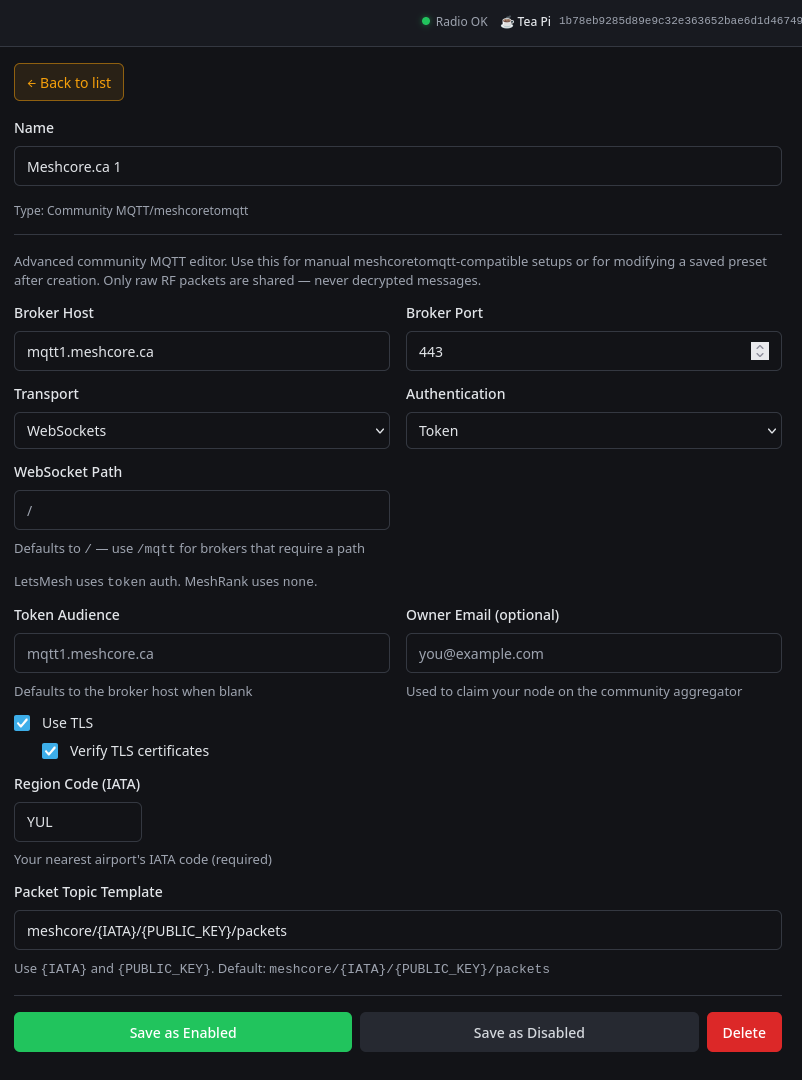
Open Settings → MQTT & Automation, add Community MQTT / meshcoretomqtt, and enter:
| Field | Primary value |
|---|---|
| Name | MeshCore.ca 1 |
| Broker Host | mqtt1.meshcore.ca |
| Broker Port | 443 |
| Transport | WebSockets |
| Authentication | Token |
| WebSocket Path | / |
| Token Audience | mqtt1.meshcore.ca |
| Use TLS | Enabled |
| Verify TLS certificates | Enabled |
| Region Code | Your nearest real three-letter location code |
| Packet Topic Template | meshcore/{IATA}/{PUBLIC_KEY}/packets |
Leave optional owner email blank unless it is operationally needed. Save the entry as enabled.
Add a backup entry with the same values, changing only:
| Field | Backup value |
|---|---|
| Name | MeshCore.ca 2 |
| Broker Host | mqtt2.meshcore.ca |
| Token Audience | mqtt2.meshcore.ca |
Use the same location code in both entries.
Windows MQTT fanout
If RemoteTerm's current upstream instructions require Uvicorn --loop none for Windows MQTT fanout, use that documented launch option. Confirm against the installed RemoteTerm version.
What you should see
Both entries stay enabled without repeated TLS or token errors, and RemoteTerm's packet count changes when it hears nearby activity.
Verify in CoreScope
- Open CoreScope Observers and find the RemoteTerm observer.
- Create or wait for normal nearby activity.
- Open CoreScope Packets and confirm a recent packet appears.
Finish with Check your observer. A connected entry without a recent packet is not proof that the whole path works.
Recovery
Disable or remove only the two Community MQTT entries you added. Do not remove unrelated RemoteTerm automation. Confirm RemoteTerm still manages the radio normally.
If verification fails
Use Troubleshooting. If only the backup fails, check that its host and token audience are both mqtt2.meshcore.ca.